PrestaShop Module

B2B Access Manager for PrestaShop

by Metalinked

Control who can see prices and buy in your PrestaShop store.

Decide which customers can view your prices, add to cart and complete a purchase. Every business account is manually approved before accessing your store. No anonymous visitors, no unauthorized orders.

Compatible with PrestaShop 8 & 9 PHP 8.1+

๐Ÿ’ก More than a hide price module. A complete B2B customer management system.

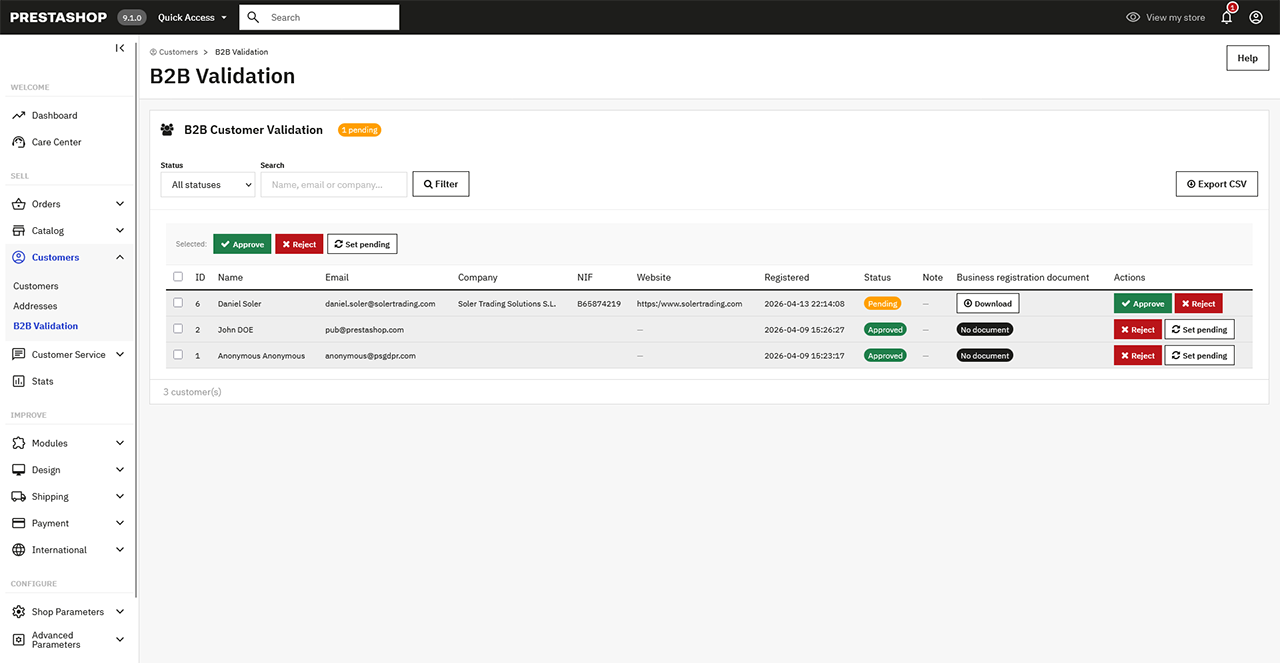
Customer validation panel

Your store is open to everyone by default

โŒ

Anyone can see prices

โŒ

Anyone can add products to cart

โŒ

No customer validation process

๐Ÿ‘‰ This setup is not suitable for B2B businesses that require control and verification.

Take full control of your B2B customers

  • Restrict access to prices, cart and checkout
  • Allow only approved customers to purchase
  • Implement a complete business onboarding process
  • Validate customers before granting access
Restrict access to prices, cart and checkout

How it works

๐Ÿ“

Step 1

Business Registration

Customer registers with full business details

โณ

Step 2

Pending Approval

Account is automatically set to Pending approval

๐Ÿ“ง

Step 3

Admin Notified

Admin receives a notification email

๐Ÿ”Ž

Step 4

Review & Decision

Admin reviews and approves or rejects the request

โœ‰๏ธ

Step 5

Customer Notified

Customer receives email notification

โœ…

Step 6

Full Access

Approved customers get full store access

Demo

Everything you need for B2B

๐Ÿ”

Access Control

  • Hide prices for guests and non-approved users
  • Disable add to cart and checkout until approval
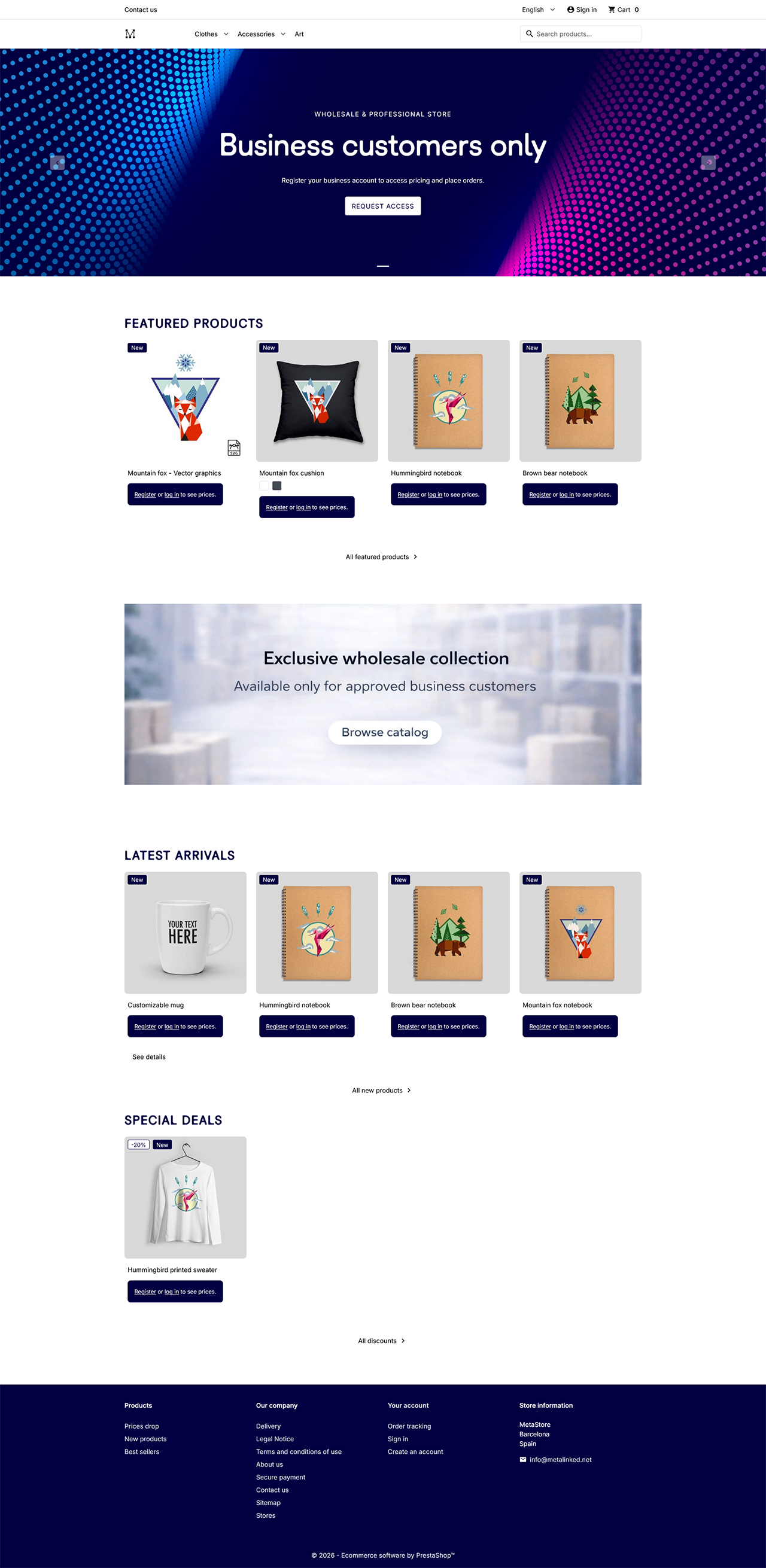
  • Display custom messages (register to see prices / buy)
๐Ÿงพ

B2B Customer Onboarding

  • Extended registration form with business data
  • Customers provide all required information before approval
  • Automatic customer status management (Pending / Approved / Rejected)
  • My B2B Profile page in My Account: customers can update their data and replace documents any time
๐Ÿ“

Custom Registration Form

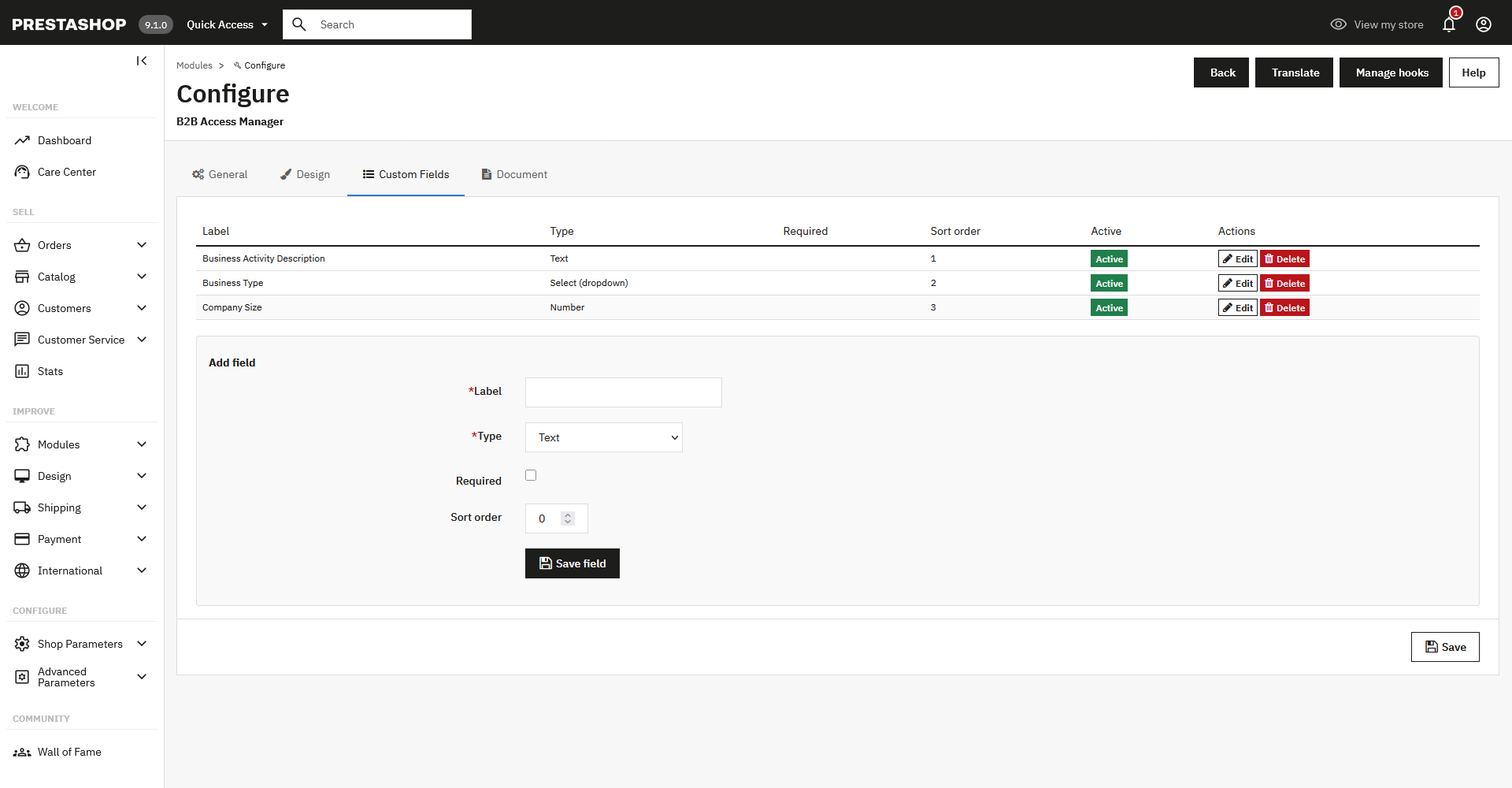
  • Add unlimited custom fields: text, textarea, number, date or dropdown, each configurable as required or optional
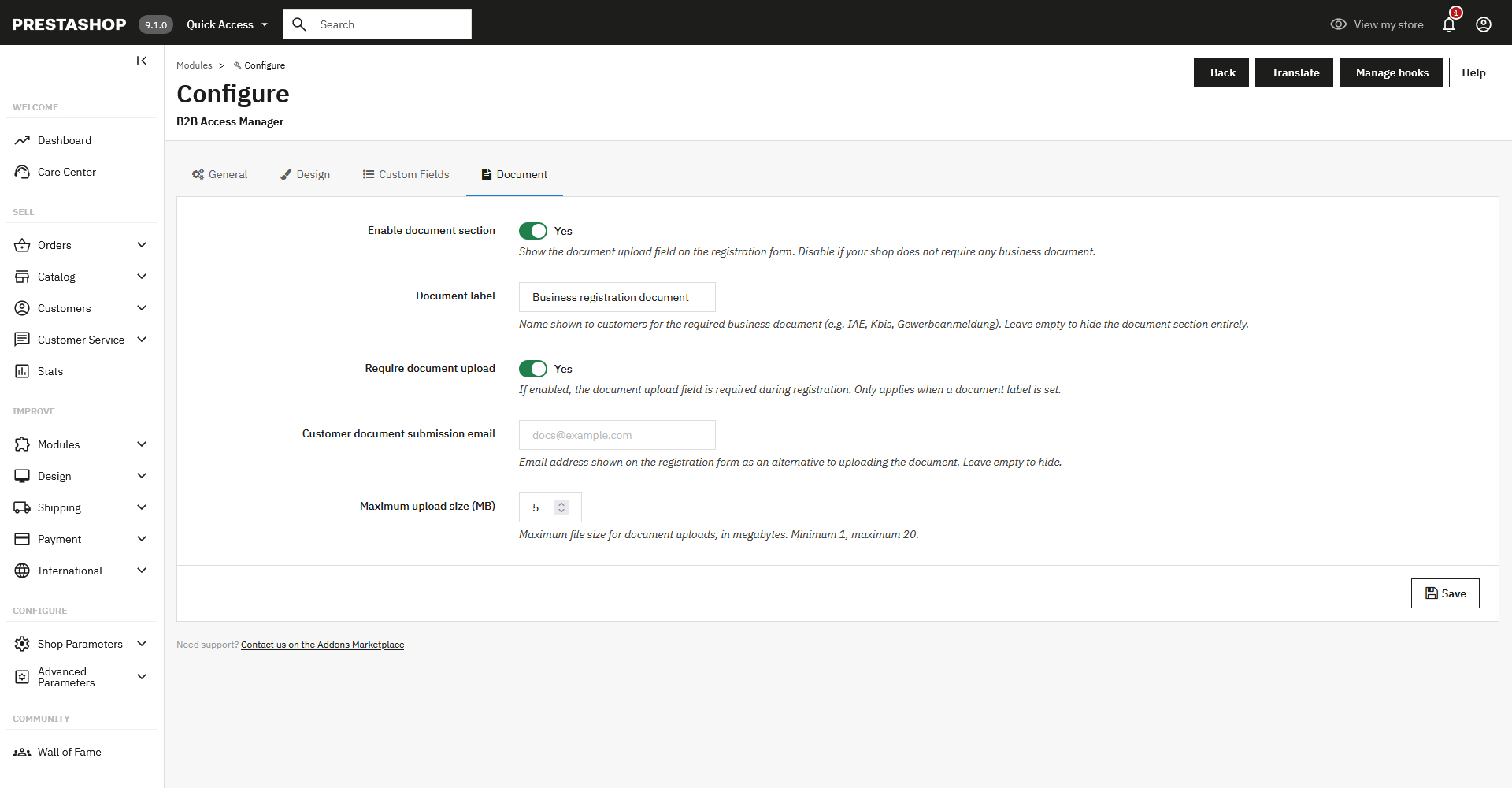
  • Request a business document (PDF/JPG/PNG): configurable label, required or optional, stored securely on the server
  • Customers can update their custom field values and replace their document at any time from My Account
๐Ÿ› 

Admin Tools

  • Dedicated validation panel in back office
  • Filter customers by status, name, email or company
  • Bulk actions: approve, reject or set as pending
  • Pending count badge in the backoffice menu, paginated list and one-click CSV export (Excel-ready)
๐Ÿ“ง

Email Notifications

  • Admin alerts for new pending registrations
  • Automatic emails to customers after approval or rejection
  • Optional custom message when rejecting a request
โš™๏ธ

Advanced Configuration

  • Toggle "register to see prices" and "register to buy" messages per theme
  • Set admin notification emails for new pending registrations
  • Configure document label, upload requirement and max file size
  • Customise alert colours (background, border, text, links) and inject custom CSS

Powerful Back Office

A dedicated panel designed to manage your B2B customers at scale.

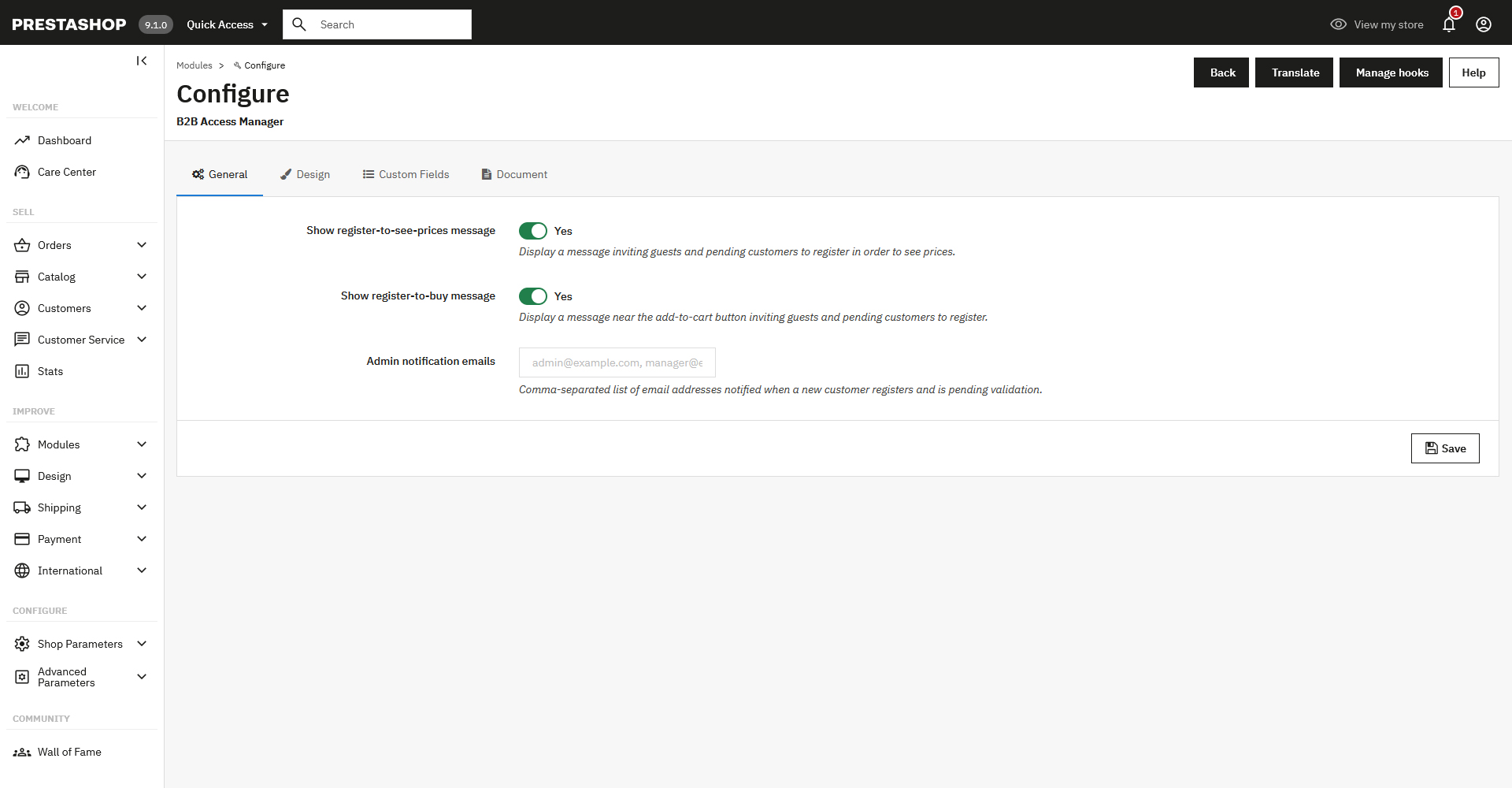
General: frontend messages, visibility rules and admin notification emails

General: frontend messages, visibility rules and admin notification emails

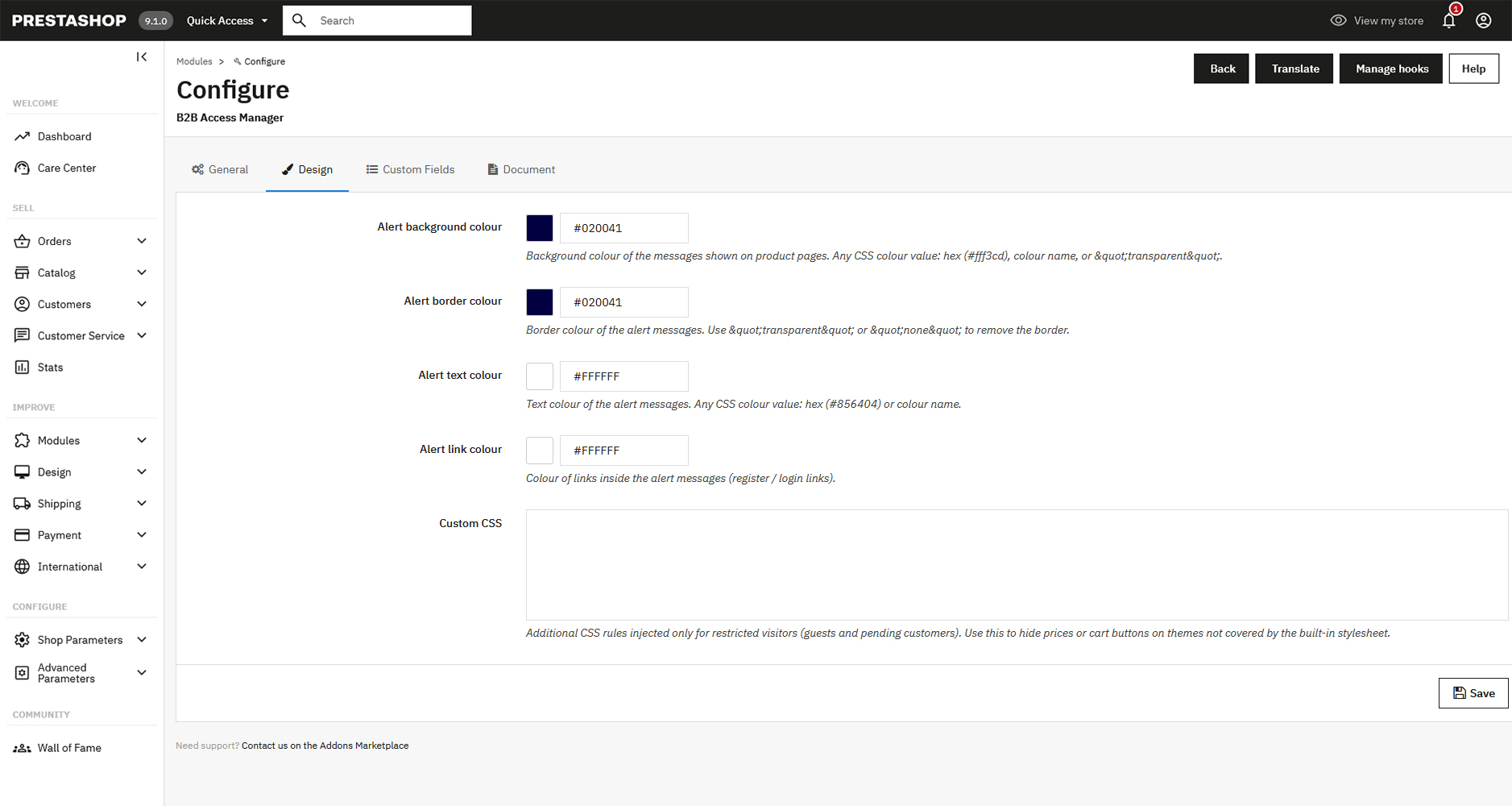
Design: alert colours (background, border, text, links) and custom CSS for restricted visitors

Design: alert colours (background, border, text, links) and custom CSS for restricted visitors

Custom Fields: add extra registration fields (text, number, date, dropdown), no code required

Custom Fields: add extra registration fields (text, number, date, dropdown), no code required

Document: enable upload, set label, required toggle, max file size and alternative email

Document: enable upload, set label, required toggle, max file size and alternative email

The results you get

Sell only to verified business customers
Prevent unauthorized access to pricing
Reduce invalid or unqualified orders
Save time with automated onboarding
Improve trust and professionalism in your store

Changelog

v1.12.2 July 2026
  • fix Improved server-side price protection for unapproved/restricted customers
  • fix Fixed an error that could occur when viewing order details in the back office
v1.12.0 July 2026
  • new Added Dutch, Portuguese and Polish translations
v1.1.1 June 2026
  • new Custom registration fields (text, select, checkbox) configurable from the back office
  • new B2B customer profile page to view and edit submitted field values
  • new Enable/disable toggle for the document upload section
  • fix File upload size limit now correctly enforced (was configurable but not applied)
v1.0.0 April 2026
  • init Initial release

Frequently Asked Questions

Is it compatible with PrestaShop 8 and 9?
Yes. B2B Access Manager is fully compatible with both PrestaShop 8.x and 9.x.
How long does it take to install and get up and running?
Just a few minutes. You install it through the standard PrestaShop back office module manager, configure your preferences in the settings panel, and the module is live. No developer needed.
Can I customise the fields on the B2B registration form?
Yes. The Custom Fields tab in the module configuration lets you add as many extra fields as you need: text, textarea, number, date, or dropdown. Each field can be made required or optional, given a custom label, sorted independently, and toggled on or off without losing stored data. The form always includes core business details (company name, address, VAT number, phone, website) as a base. All values are visible in the backoffice customer list and included in the CSV export.
What happens when a customer registers?
Their account is automatically set to Pending. The admin receives a notification email and can then approve or reject the request from the back office.
Can I send a message when I reject a customer?
Yes. When rejecting a registration, you can include an optional custom message that will be sent to the customer in the notification email.
Does it work with any PrestaShop theme?
Yes. The module works at the logic level and is compatible with any theme. You can also inject custom CSS and adjust alert colours to match your store's design.
What happens to my existing customers when I install the module?
Existing customers are not affected. You can manage their approval status individually from the back office validation panel.
Is there a limit on the number of B2B customers I can manage?
No. The admin panel is designed to handle large volumes of customers efficiently, with filters, bulk actions and CSV export.
My theme still shows prices and the cart button to non-approved customers. What can I do?
Access control is enforced server-side, so unapproved visitors can never buy or see real prices regardless of what the theme renders. However, to also hide the empty price container and the (non-functional) cart button visually, the module includes built-in CSS rules for the Classic and Hummingbird themes. If you use a different theme, go to Settings > Design > Custom CSS and add the selector that wraps the price or cart button in your theme, for example: .price { display:none !important; }. This CSS is only injected for guests and pending customers.
Can I customise the emails sent to customers and admins?
Yes. All email templates (the admin alert for new pending registrations, the pending notification sent to the customer, and the approval or rejection emails) can be fully edited from your PrestaShop back office. Go to Design > Email Theme (or International > Translations > Email templates, depending on your version) and look for the templates listed under the module name. From there you can modify the copy, adjust the layout and translate them into any language not yet covered.
Where exactly do I configure the module?
From your PrestaShop back office, go to Modules > Module Manager, find B2B Access Manager and click Configure. All settings (general options, design, custom fields and document upload) are managed from there.
Where do I manage and validate new customer registrations?
From a dedicated back office menu entry, not from the module configuration page: open the Customers submenu and click B2B Validation. There you'll find the full list of pending, approved and rejected accounts, with filters, bulk actions and CSV export.

Turn your store into a controlled B2B platform

Start validating your customers and protecting your pricing today.

๐Ÿ‘‰ Get B2B Access Manager Have questions? Contact us

B2B Access Manager by Metalinked

Compatible with PrestaShop 8 & 9